

Cold email can bring a recruitment agency a steady stream of employers who want to talk. Whether those conversations become clients comes down to what happens after the reply: who picks it up, how fast, and whether anyone remembers the employer who said "try me in March".
We've already covered whether cold email works for recruitment agencies and why it fails when it does. This guide is the how. It walks through the setup we use when we run employer outreach for Australian agencies, and how to track the results in HubSpot so you can see which emails turned into clients.
It's for the owner or director of a small agency, whether you run this yourself or want to know what a good provider should be doing.
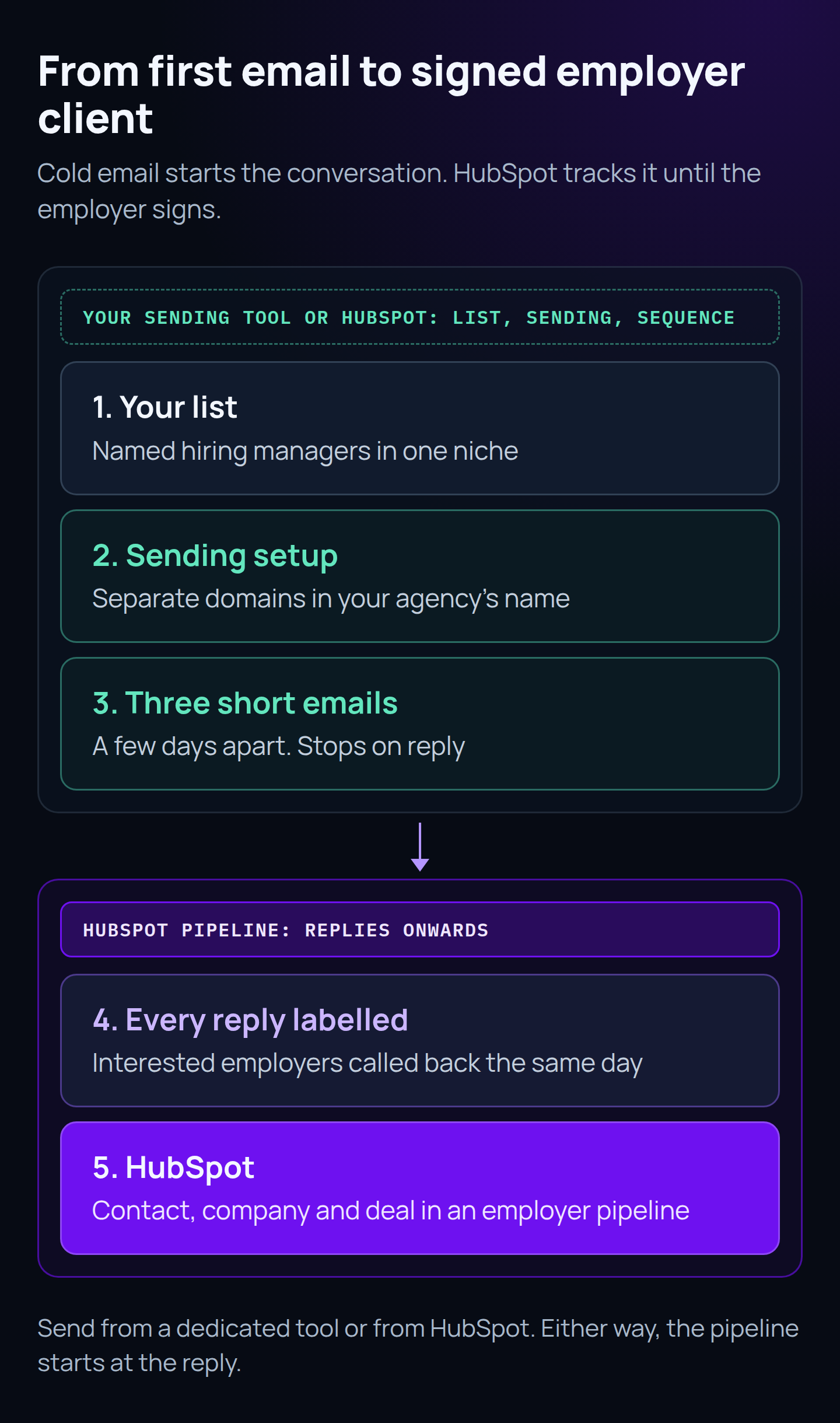
The short version: build a small list of named hiring managers in one niche. Send from separate domains in your agency's name, never your main one. Send three short emails a few days apart and stop when someone replies. Label every reply and call interested employers back the same day. Track the people who reply in HubSpot, as a contact, a company and a deal in a pipeline built for winning employer clients. Then review four numbers every week.
Step 1: Decide what a win looks like before you send anything
Most agencies skip this, which is why their reporting never quite answers "is this working?". Write down three definitions first.
- An interested employer. We use this: a decision-maker at a target employer asks to talk, asks about candidates or fees, or sends you a role. Out-of-office replies, "not now" and unsubscribes don't count.
- A client won. Pick the moment you'll call it a win. For most agencies that's signed terms of business, because that's when the employer has agreed to work with you. The placement itself is tracked in your ATS.
- A "not now". An employer who isn't hiring yet but is happy to hear from you later. That's future pipeline, and it needs a date to check back.
These three definitions become your HubSpot pipeline stages and your weekly numbers. If they're fuzzy, every report will be too.
Step 2: Build a list of hiring managers, not job titles
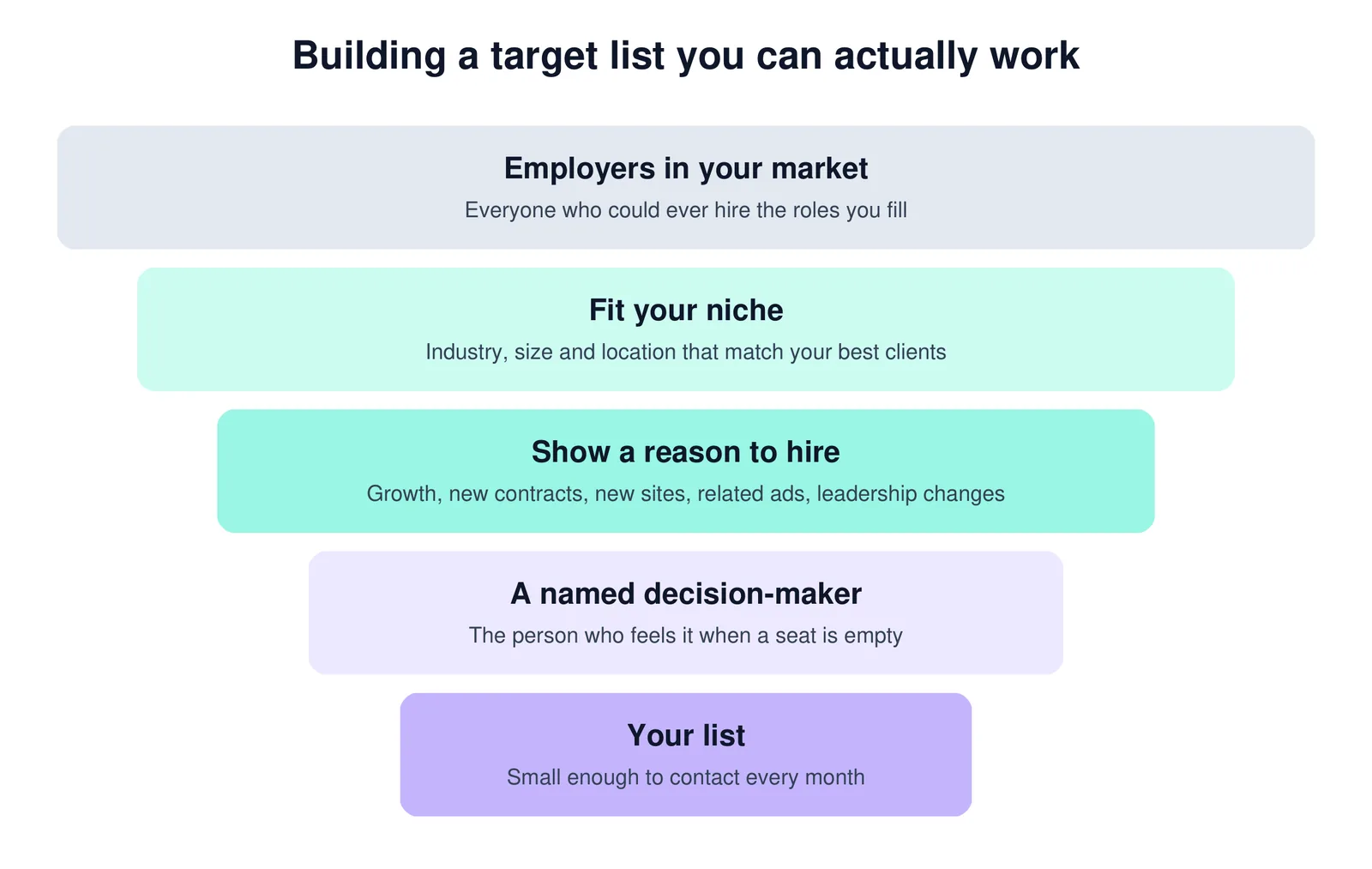
Start with the employer, then find the person. A list of "HR managers in Melbourne" gets you people who don't hire for your niche. A list of employers who look like your best clients, each with the person who feels it when a seat is empty, gets you replies.
- Fit. Look at the clients who paid your full fee and hired more than once. Their industry, size, location and the roles they hire describe your niche.
- A reason to hire. A new contract or site, ads for related roles, or a new leader rebuilding a team. Employers already advertising roles you fill go to the front of the queue.
- The right person. In a small business that's usually the owner or a director. In a bigger one it's often the operations manager or the head of the department, not always HR.
We go through this in more detail in how niche recruiters reach hiring managers before roles are advertised.
Capture the same columns for every employer, because you'll want them in HubSpot when someone replies: company, website, industry, location, size, the roles they hire that you fill, the hiring signal and when you saw it, and the contact's name, title, email and where you found them.
Keep this list wherever you'll send from. If you use a dedicated cold email tool, keep it there or in a spreadsheet and bring people into HubSpot once they reply. If you send from HubSpot, they'll be contacts from day one, so fill in the Outbound campaign property from Step 6 as you import them.
Step 3: Set up sending that protects your main domain
Your main domain is the one your consultants use with candidates and clients every day. Don't send cold email from it. If cold sending damages its reputation, your everyday email starts landing in junk too.
Here's the setup we use for recruitment campaigns:
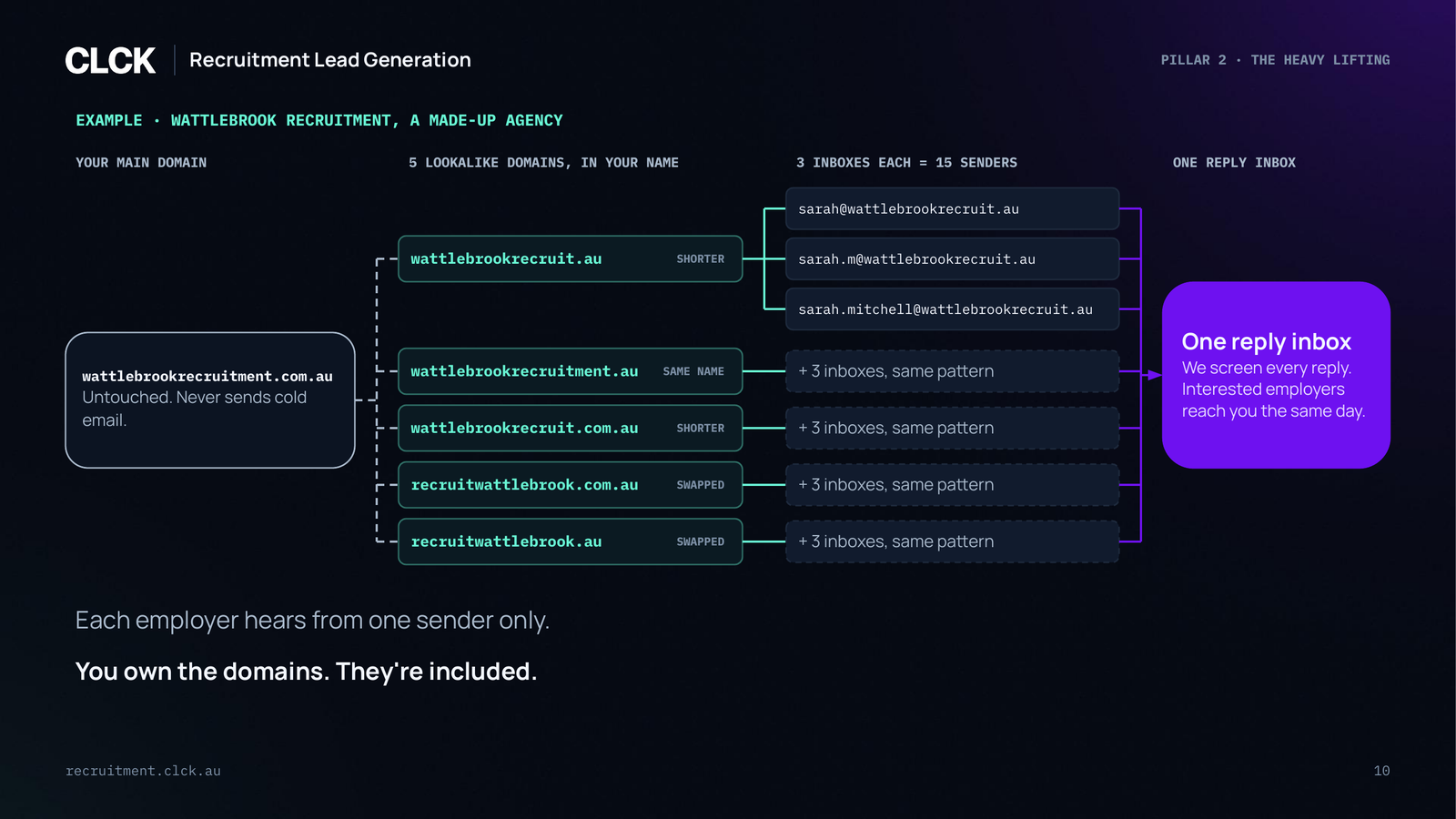
- Separate lookalike domains in your agency's name. For a made-up agency, Wattlebrook Recruitment, that might be wattlebrookrecruit.au or recruitwattlebrook.com.au. Each one redirects to your real website, so anyone who checks finds you.
- A few inboxes on each domain. We set up three inboxes per domain, under the name of a real person at your agency who has agreed to send. Each employer hears from one sender only.
- Authentication on every domain. SPF lists which servers are allowed to send for the domain. DKIM adds a signature so the receiving server can check the email wasn't changed on the way. DMARC tells receiving servers what to do when those checks fail. Google requires anyone sending to Gmail addresses to set up SPF or DKIM and to keep spam rates reported in its Postmaster Tools below 0.3%. Senders of more than 5,000 messages a day to Gmail need all three.
- Warm-up and a slow start. New inboxes warm up before the campaign starts. Then sending starts low and ramps up over the first weeks.
- One reply inbox. Replies from every sending inbox land in one place, so nothing gets missed.
Every email also needs to identify your agency, include your contact details and give an easy way to unsubscribe, which you must honour within 5 working days under the Spam Act 2003. The ACMA's guidance covers consent; our first article explains how it applies to recruiters. Get advice on your own situation.
Should you send from HubSpot? You can send cold outreach from HubSpot or from a dedicated cold email platform, and agencies do both. The right choice depends on how many employers you want to reach, your HubSpot subscription and how much of the sending setup above you want to manage yourself.
HubSpot sequences send a series of timed emails from a consultant's own inbox connected to HubSpot. They go out as one-to-one sales emails, each one is logged on the contact's record, and a contact can drop out of the sequence automatically when they reply or book a meeting. Sequences need a Sales Hub or Service Hub Professional or Enterprise seat, and daily send limits apply from both HubSpot and your email provider.
HubSpot's prospecting agent goes further. It watches the companies you target for signals such as new job openings, expansion or funding, suggests who to contact, and writes personalised emails from your CRM data and its own research. You decide whether to approve each email or let it send on its own, and it sends from a connected inbox. For a recruiter, a company posting new jobs is a ready-made reason to get in touch. It's included with most paid HubSpot subscriptions and uses HubSpot Credits each time it writes outreach for a lead.
A dedicated cold email platform is built for the multi-domain setup above. It warms up new inboxes, spreads sending across your domains, stops when someone replies and collects every reply in one inbox. That's what we use for recruitment campaigns, with HubSpot holding the replies and the pipeline. Whichever way you send, the pipeline in Step 6 works the same.
Step 4: Write three short emails, and stop when they reply
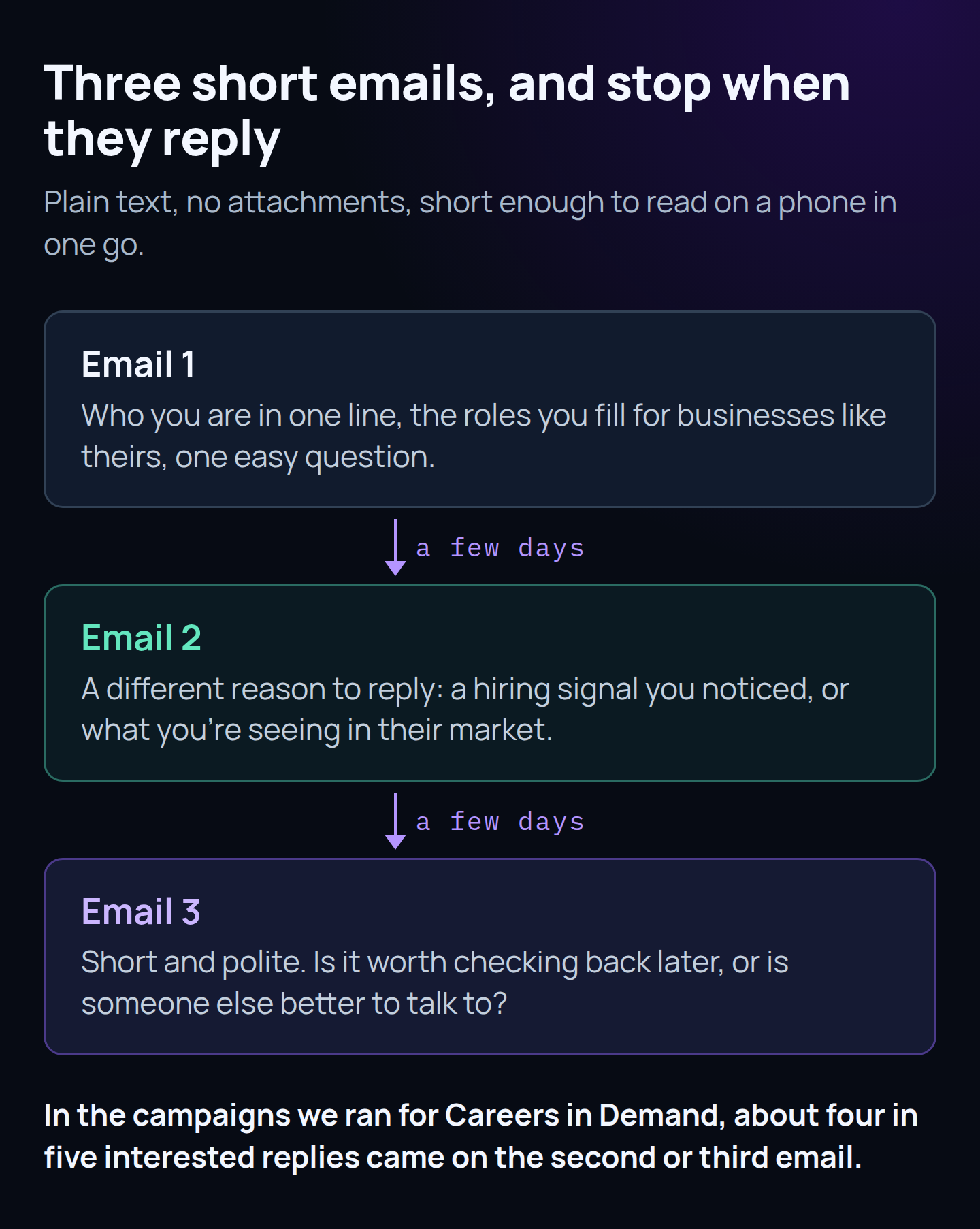
Each employer gets three short emails, a few days apart. Every one should read like a quick note from a recruiter who knows their world, short enough to read on a phone in one go.
- Email 1: who you are in one line, the roles you fill for businesses like theirs, and one easy question, such as whether any roles like that are coming up.
- Email 2: a different reason to reply. A hiring signal you noticed, or what you're seeing in their market for those roles.
- Email 3: short and polite. Is it worth checking back later in the year, or is someone else better to talk to?
That last question invites "not now" and "talk to Sam instead" replies, and both are pipeline.
Don't judge a campaign on the first email. For Careers in Demand, an education and VET recruiter, about four in five interested replies came on the second or third email.
A few rules we follow:
- Plain text. No attachments, no candidate profiles nobody asked for, no long agency bio.
- One campaign per market, with its own message. Trainers for RTOs and maintenance planners for manufacturers need different emails.
- Change one thing at a time, such as the subject line or first sentence, so you know what made the difference.
There's a real first email from one of our campaigns in our guide to reaching hiring managers early.
Step 5: Label every reply, and call interested employers the same day
Replies are where cold email is won or lost. An employer who replies today and hears back next week has usually found someone else.
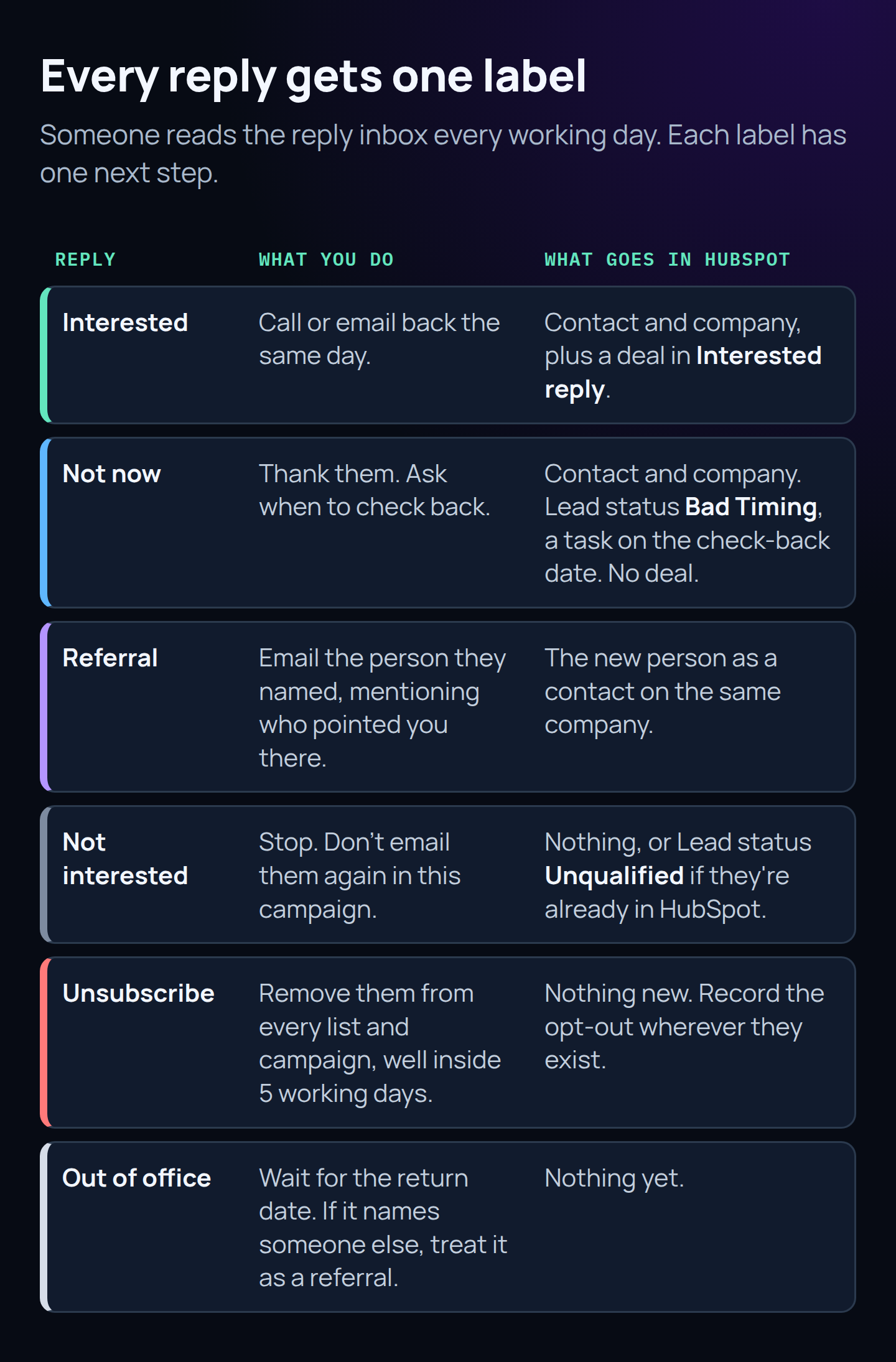
Someone needs to read the reply inbox every working day, and every reply gets one label with one next step:
- Interested: call or email back the same day. Ask about the role, the timing, what's made it hard to fill and how they like to work with agencies.
- Not now: thank them and ask when it's worth checking back. Then put that date somewhere you'll see it.
- Referral: email the person they named and mention who pointed you their way.
- Not interested: stop. Don't email them again in this campaign.
- Unsubscribe: remove them from every list and campaign, well inside the 5 working days the law gives you.
- Out of office: wait for the return date. If it names someone else to contact, treat it as a referral.
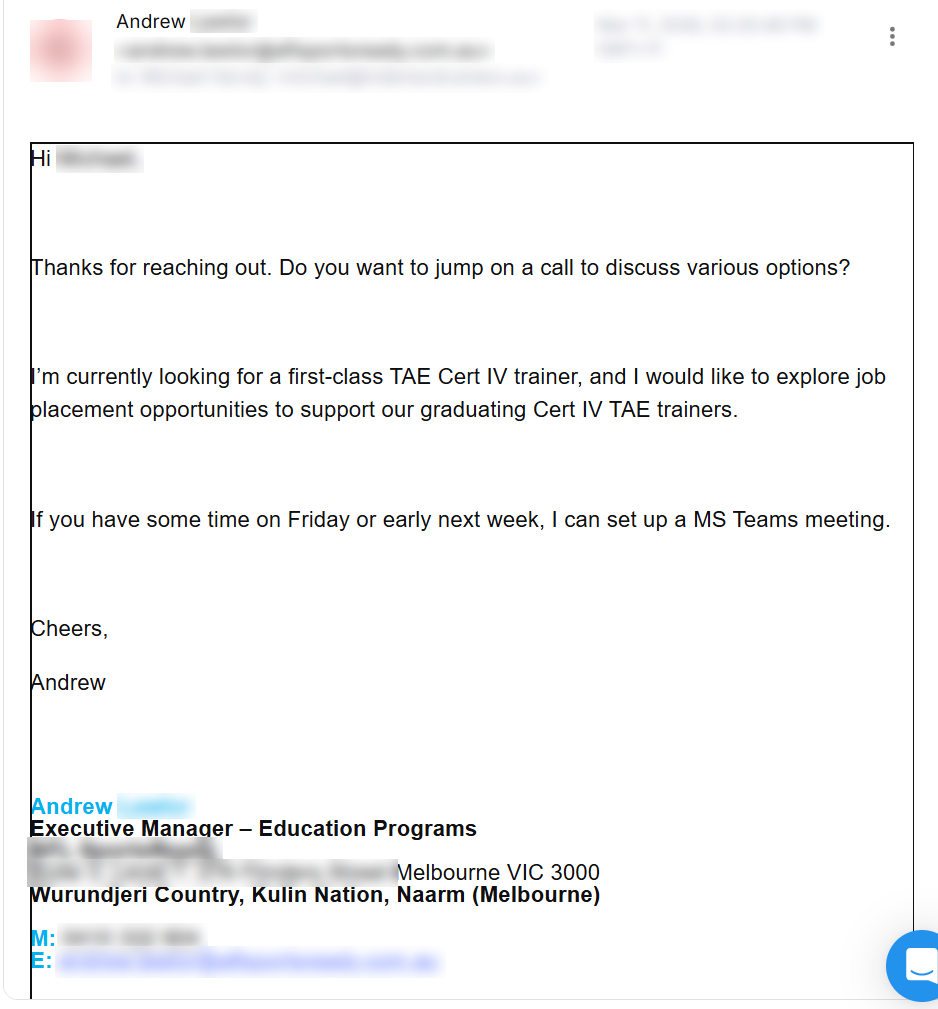
This is what a good reply looks like when it lands. It came from a training provider in one of the Careers in Demand campaigns:
Step 6: Set up HubSpot to track employer clients
HubSpot is where an interested reply becomes a client, or quietly goes cold. Keep the setup small: a few records, one pipeline and a handful of properties.
Start from the reply
When someone replies as interested, not now or a referral, make sure they're in HubSpot as a contact associated with their company. Interested employers also get a deal. "Not now" employers don't: deals should be live opportunities, or your pipeline will look bigger than it is.
If you send from a dedicated tool, you can create records by hand from the reply, or import a file from your sending tool each week. HubSpot's import tool can bring in contacts and companies together and associate them, and HubSpot records how each record was created in its Record Source property. If your sending tool has a HubSpot integration, check what it syncs before you switch it on. You want the replies, not your whole prospect list.
From then on, reply from your own inbox connected to HubSpot, so every email in the conversation is logged on the contact's record.
Use a pipeline built for winning employers
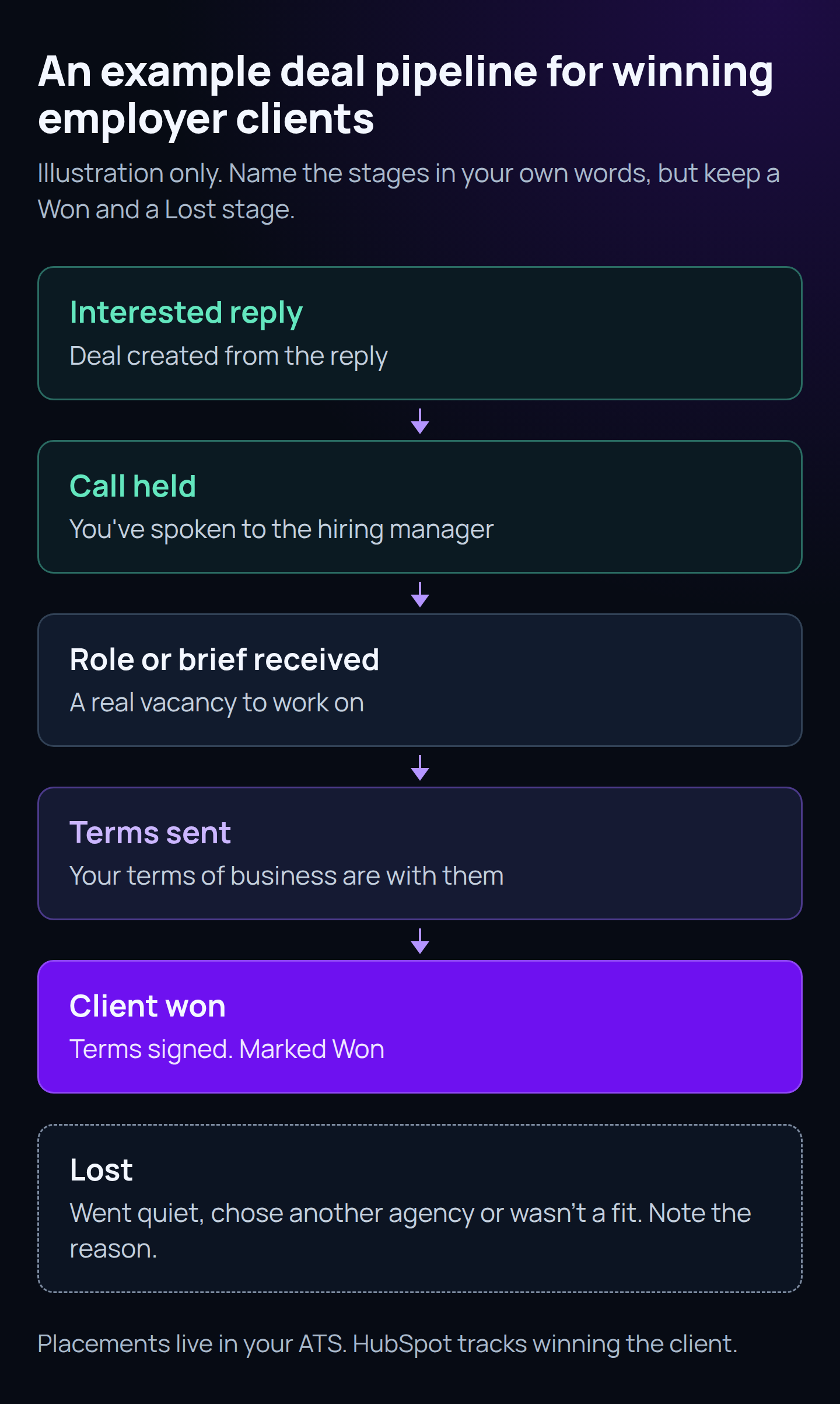
Every HubSpot account has a default deal pipeline, and you can rename, add and reorder its stages. With a Starter subscription or above, you can create a separate pipeline for winning new employers. Here's an example:
- Interested reply: the deal is created from the reply.
- Call held: you've spoken to the hiring manager.
- Role or brief received: there's a real vacancy to work on.
- Terms sent: your terms of business are with them.
- Client won: terms signed. Mark this stage as Won.
- Lost: they went quiet, chose another agency or weren't a fit. Mark this stage as Lost and note the reason.
HubSpot needs a Won and a Lost stage in the pipeline for its sales reports to treat your deals correctly. Name deals the same way every time, such as "Company name: role type", so the board is easy to scan.
You can also set conditional stage properties, so HubSpot asks for certain details when a deal moves into a stage. For example, ask for the role type when a deal reaches Role or brief received.
Placements belong in your ATS. HubSpot's job here is winning the client. If you want to connect campaigns to fees later, add a date property for the first placement and fill it in when it happens.
Add a handful of properties
You can create custom properties on contacts, companies and deals on any HubSpot plan, though how many you can create depends on your subscription. These are the ones we'd start with:
| Record | Property | Type | Why it matters |
|---|---|---|---|
| Contact | Lead status (built in) | Dropdown | Shows where each person is. The default options include Attempted to Contact, Connected, Open Deal, Unqualified and Bad Timing. |
| Contact | Outbound campaign | Dropdown | Which campaign or niche they replied to. |
| Contact | Check-back date | Date | When a "not now" employer asked you to come back. |
| Company | Roles they hire | Checkboxes | So you can find every employer who hires, say, trainers when a great trainer comes on the market. |
| Deal | Source campaign | Dropdown | Lets you report clients won by campaign. |
| Deal | Recruitment type | Dropdown | Permanent, temp or contract, or both. |
Set reminders, then automate when you're ready
On any HubSpot plan you can create a task with a due date. Use one for every "not now" employer, due on their check-back date, and assign it to the consultant who'll make the call.
On a Professional or Enterprise subscription, workflows can do this for you. A workflow can create a task for the deal owner when a deal enters Interested reply, or when a check-back date arrives.
With Sales Hub Professional or Enterprise, HubSpot's Leads object gives consultants a follow-up queue in the Sales workspace. You don't need it to start.
Step 7: Review four numbers every week
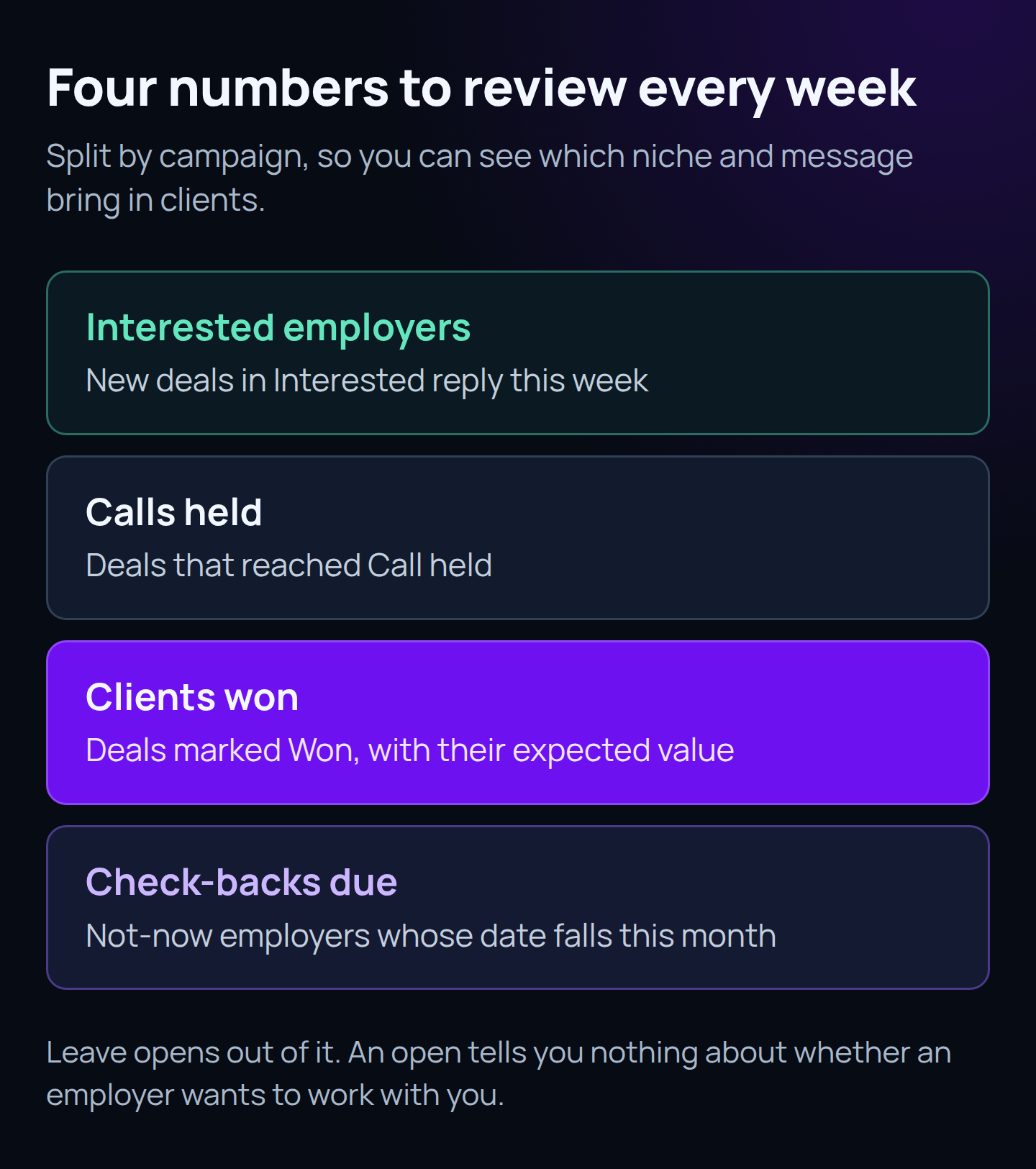
Each week, look at four numbers, split by campaign:
- Interested employers: new deals in Interested reply.
- Calls held: deals that reached Call held.
- Clients won: deals marked Won, with their expected value.
- Check-backs due: "not now" employers whose date falls this month.
Leave opens out of it. An open tells you nothing about whether an employer wants to work with you.
On any plan, a filtered view of your deals board and the reports in HubSpot's report library will cover most of this. Custom reports and funnel reports, which show how many deals move from one stage to the next, need a Professional or Enterprise subscription.
Then close the loop. Tell whoever writes the emails which replies turned into work, so the next campaign aims at more employers like them. After a few months you'll have enough history to start scoring new replies by fit and intent. Our guide to HubSpot lead scoring covers how to keep that model small.
Doing it yourself, or handing part of it over
You can run all of this in-house. List building and sending take the most time, and they're the first things to slip when every desk is busy. Reply handling and the HubSpot pipeline should stay with your team, because that's where the relationship is built.
That's the split we use in our recruitment lead generation work. We find the hiring managers, write and send the emails in your agency's name, read every reply and send interested employers straight to your team with an alert. You don't need a CRM to work with us. If you use HubSpot, we've been HubSpot partners for more than ten years and can fit into the way you work. The same approach sits behind our cold email service for other B2B firms.
For Careers in Demand, four 2026 campaigns brought 96 interested employers, plus 174 "not right now" replies to go back to, and 8 placements so far. As Michael, their Director, put it: "The dashboard is really simple to use, and we can see the whole conversation with every employer." Read the case study.
Next step
If you'd like help setting this up, or want us to look at your HubSpot pipeline before you start sending, apply for a free planning session.