
A meeting link should do more than save a few emails. It should get the right person into the right conversation, at a time your team can honour.
That sounds obvious, but plenty of booking pages create extra work. Someone books the wrong call. Two people are needed but only one gets the invite. A diary looks free even though delivery work is already booked in. Then the meeting happens and nobody owns the next step.
HubSpot Meetings can take the back-and-forth out of booking. The result depends on the decisions behind the page.
This guide walks through the setup choices that matter: what the meeting is for, who should take it, which calendars count, what to ask in the form, and what happens after someone books.
Start with the meeting's job
Don't begin with a blank scheduling page. Begin with the conversation you want to have.
A new enquiry might need a 15-minute fit check. A prospect who's already done some homework may need 45 minutes to talk through their situation. A new customer may need an onboarding call with both their account lead and implementation owner.
Those are different meetings. Give each one its own title, length, host, availability and follow-up.
For most teams, a short menu works better than a long run of almost-identical options. Keep the names plain:
- 15-minute fit check for a new enquiry that needs a quick first chat
- 45-minute strategy session for someone with a defined issue to work through
- Customer onboarding call for the handover once a deal is won
Your title and description don't need to sell the whole service. They just need to tell someone what they're booking, who they'll meet and how long it'll take. Mention anything they should bring along, if there is anything.
Pick the right page type
HubSpot offers one-to-one pages and team scheduling pages. The choice comes down to the meeting itself, plus the subscription and seats in your portal.
One-to-one
Use a one-to-one page when someone needs to book directly with one person. The page shows that organiser's availability and creates the meeting with them.
Free-tool users and people with an assigned Core seat can create one one-to-one page with default HubSpot branding. People with an assigned Sales or Service seat can create multiple scheduling pages and team pages.
Group
A group page is for a meeting where two or more people really do need to be there. Think of a technical scoping call where sales and delivery both need to hear the requirements, or an onboarding session with the account lead and implementation owner.
HubSpot only shows times when every selected team member is available. That's worth it when the buyer needs those people in the room from the start. It isn't a good reason to add people who only want visibility. Fewer matching gaps in the diary means fewer choices for the person booking.
Round-robin
A round-robin page is for an enquiry that any suitable team member can handle. It offers time across selected team members and assigns the booking to someone who's available.
Group and round-robin pages need an eligible Sales Hub or Service Hub subscription, along with suitable seats for the people taking part.
Before you switch on round robin, decide who should get which conversation. Existing customers may belong with their account owner. Larger enquiries may need a senior salesperson. Someone new to the role may be better placed on lower-risk calls. Speed matters, but a booking with the wrong person can still make a poor first impression.
Connect calendars before you share the link
HubSpot can connect one primary Google, Office 365 or Exchange calendar to Meetings. That primary calendar lets HubSpot check existing events, show availability and add a booked meeting to the calendar.
If you use Google or Office 365, you can also add extra calendars for availability checks. This matters when a personal calendar, shared delivery calendar or another work schedule should block time.
There's one detail that catches people out. Extra calendars can block a slot, but the booked meeting only goes into the person's default calendar. It doesn't get added to every calendar HubSpot checks.
Set it up in this order:
- Connect the person's work calendar, rather than a shared inbox calendar.
- Add any calendars that should block their availability.
- Check their actual working hours and recurring commitments.
- Make a test booking as though you're a visitor.
Without a connected calendar, HubSpot can still show a page in offline mode. It can't show live availability or automatically put the booking into calendars. That rarely matches what someone expects when they click a public meeting link.
Put real availability on the page
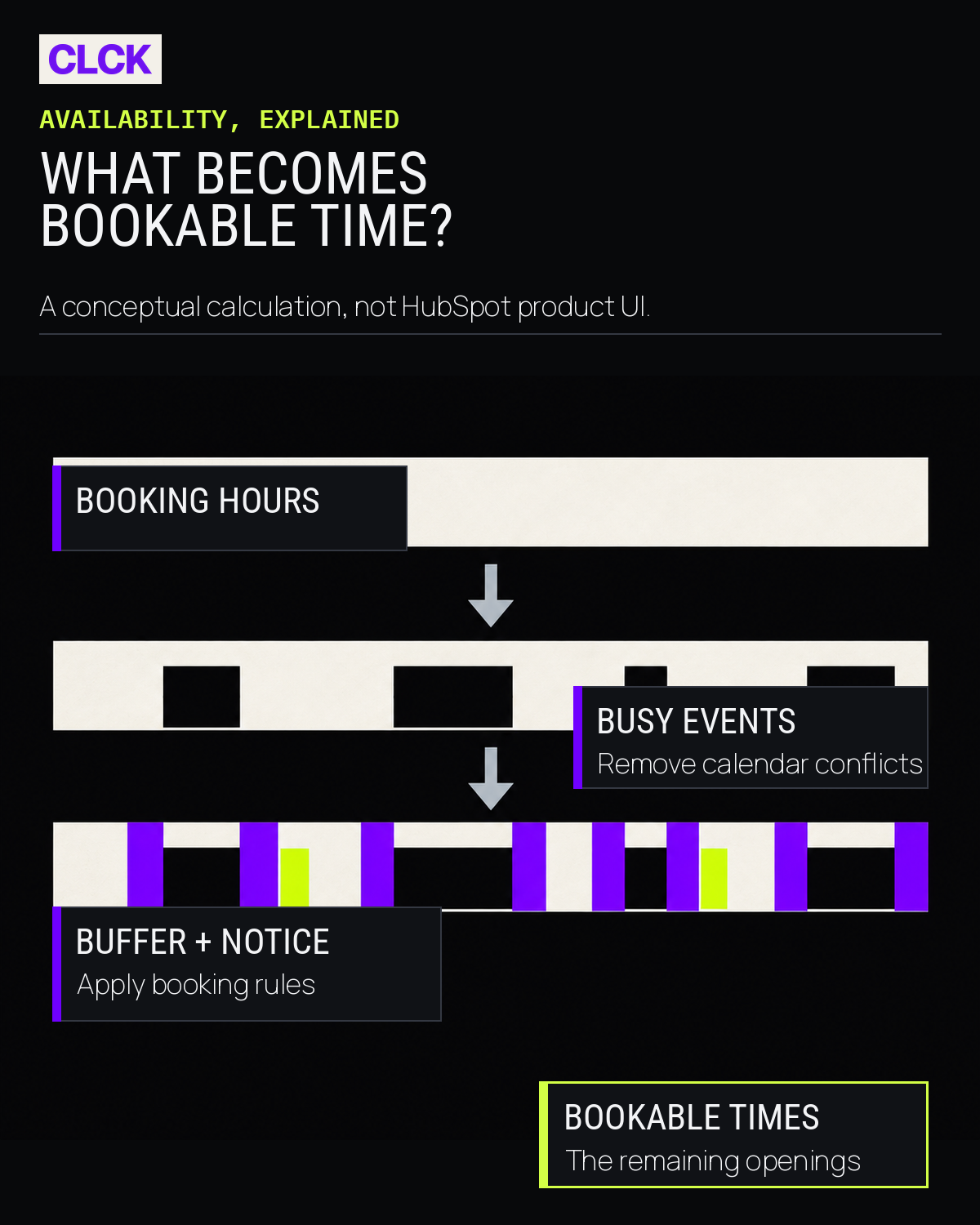
A blank patch in the diary isn't always time for a meeting. Your availability should reflect when you can give someone your full attention.
Start with a few deliberate blocks each week, then set the rules around them. HubSpot's page settings let you choose the meeting length, days and hours, how far ahead someone can book, minimum notice, buffers between calls, start-time increments and, where needed, working-hour rules.
Picture a 30-minute discovery call. If you need 15 minutes afterwards for notes, CRM updates and the next action, add the buffer. Otherwise, the calendar may look efficient while the follow-up slips.
Time zones deserve a test too, especially if you work across Australia, New Zealand or APAC. Visitors can view availability in another time zone. Make the time zone easy to spot, then book a test slot and check the event lands at the expected local time for both sides.
Ask only what changes the conversation
Every extra form field gives someone another reason to stop. Ask for information only if it'll change the call or where it goes.
Name and email are the starting point. A new-enquiry page might ask, “What are you looking to improve?” A technical scoping call might need a website URL, CRM platform or team size. An existing customer page may need very little because you already know them.
With the right Sales or Service seat, users can add contact properties and custom questions to the form. Keep it easy to complete on a phone. Make non-essential questions optional. Then check that someone actually reads the answers before the meeting.
If spam is becoming a problem, look at HubSpot's CAPTCHA and domain-blocking options before piling on qualification questions. More fields don't automatically fix it.
If you collect consent on a scheduling page, the privacy and consent settings need to match the way your wider contact and subscription setup works. That's a portal and compliance decision, not something a better sentence can solve.
Follow through after someone books
A booking confirmation should answer the things a visitor is likely to wonder about straight away:
- What have I booked?
- When is it, and which time zone is shown?
- Where will it happen?
- Do I need to prepare anything?
- How do I reschedule if plans change?
HubSpot sends a booking confirmation by default. When a calendar is connected, you can add pre-meeting reminders. Custom reminder subject lines and body copy have seat requirements, so check your account before you map out a tailored reminder sequence.
A reminder can do more than say "see you soon". For a strategy call, ask the attendee to bring their current process, target or sticking point. For onboarding, ask them to invite the people who own the systems you'll discuss.
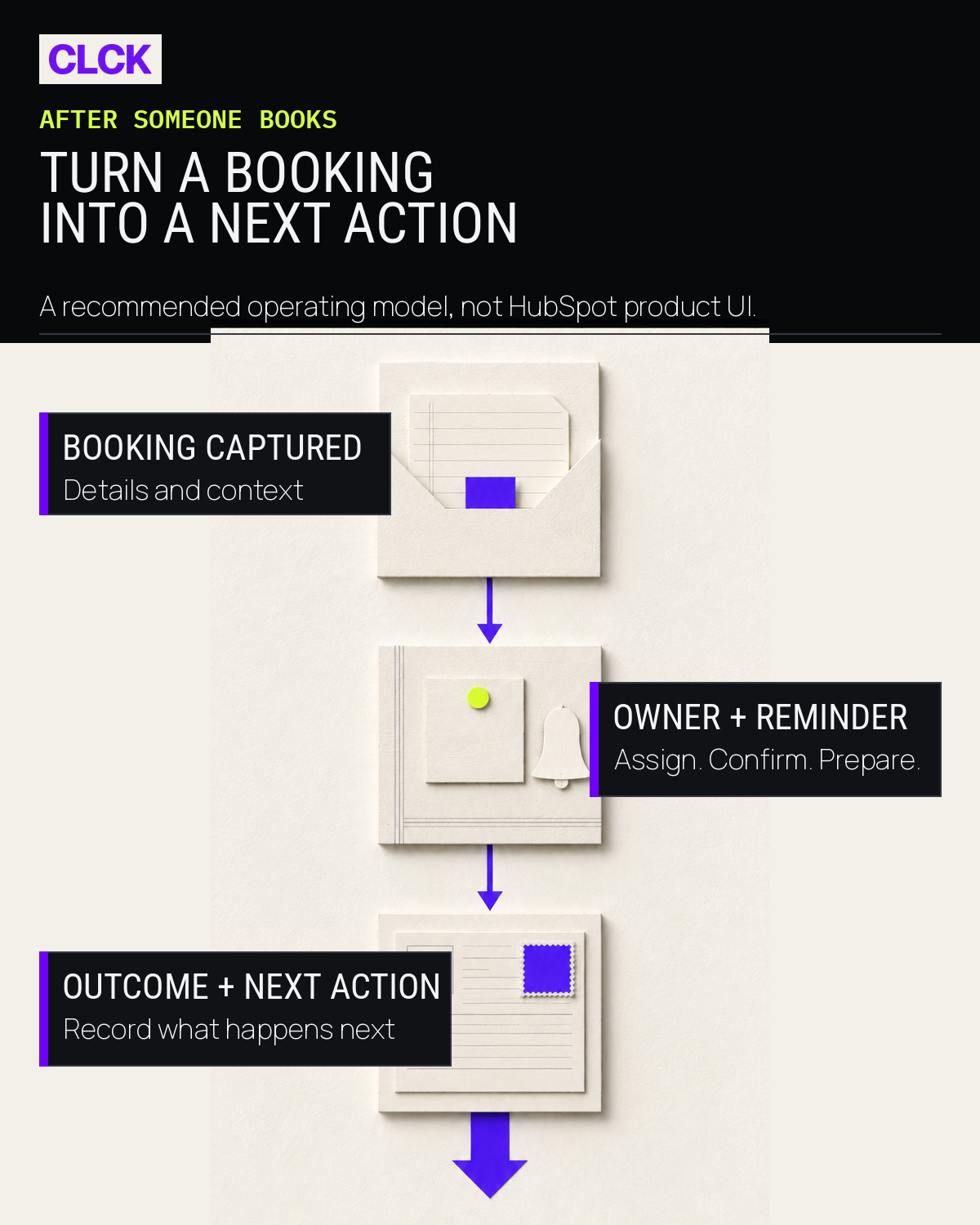
Then look at what happens internally. A booked meeting is a signal, not the finish line. It needs an owner, a next action and a way to spot meetings that didn't progress. If follow-up is still a bit patchy, our guide to HubSpot workflows and sequences is a good place to start.
Treat payments and redirects as one journey
HubSpot Meetings can show a payment link during booking when HubSpot payments or Stripe is set up as a payment-processing option in the portal.
If you're taking payment for a consultation, workshop or appointment, test the whole path before the link goes live:
- Choose a time.
- Fill in the booking form.
- Check that the right payment link appears.
- Complete a controlled test payment, where approved.
- Check the booking, payment and confirmation state in HubSpot.
- Confirm the redirect goes to the intended page.
Adding a payment link doesn't settle the rest of the process. Decide what happens if someone books but doesn't pay, pays and then reschedules, or needs a tax invoice or refund.
A redirect can send someone to an agenda, a short preparation guide or an explanation of what happens next. Don't send them to a generic thank-you page just because there's a redirect field available.
Test it from the visitor's side
Before you add a booking page to an email signature, campaign, chat widget or website, test it from outside the organiser's logged-in browser session.
Check that:
- the title, description and organiser are right
- the meeting type, length and location are right
- availability respects the primary and extra calendars
- the time zone makes sense for the intended audience
- the form isn't asking for more than it needs
- the confirmation arrives with the right details
- reminders are timed and written appropriately
- cancellation and rescheduling links work
- the meeting record, owner and next action appear where your team expects them
- payment links and redirects work from start to finish
Run that test again if a person's role, seat, calendar access, working hours, payment setup or meeting owner changes. A calendar permission change can quietly undo a page that worked last quarter.
Keep the booking page tied to the process behind it
Start with one or two booking paths that matter most. Test them with real internal scenarios. Fix the rough edges before adding more options.
If meeting links are generating calls but the CRM follow-up is still patchy, more demand probably isn't the first thing to chase. It may be time to fix HubSpot before scaling lead generation.
Want to map your meeting types, routing, calendar rules and follow-up into a HubSpot setup that fits how your team works? Book a strategy session. We'll talk through the sales process first, then work out what the booking pages need to do.
Frequently asked questions
Can free HubSpot users create a meeting link?
Yes. Free-tool users and people with an assigned Core seat can create one one-to-one scheduling page with default HubSpot branding. Multiple pages and team scheduling pages need the relevant Sales or Service seat arrangements.
What's the difference between group and round-robin meetings?
A group page only shows times when all selected team members are free. A round-robin page shows availability across selected team members and assigns the meeting to someone who's available. Both need the right subscription and seats.
Can HubSpot Meetings check more than one calendar?
HubSpot connects one primary Google, Office 365 or Exchange calendar to Meetings. With Google and Office 365, extra calendars can be checked for availability. A booked meeting goes to the default calendar, not every extra calendar.
Can I collect payment when someone books?
You can add a payment link when HubSpot payments or Stripe is configured as a payment-processing option. Test the payment, booking and redirect path in your own portal before you share it publicly.
Can I customise reminder emails?
HubSpot has confirmation emails and pre-meeting reminders. Changing the reminder subject line and body copy needs Sales or Service seats. Check your current seat assignments and settings before you design a tailored reminder.
Where can I check HubSpot's current rules?
HubSpot changes subscriptions, seats and feature settings over time. Before making a portal-level change, check its current guidance on creating scheduling pages, connecting calendars and calendar and scheduling-page settings.