
Good follow-up shouldn't depend on someone remembering every small job at the end of a busy day.
That's where HubSpot workflows can help. A workflow is a simple rule: when something happens, HubSpot does the next job.
For example, a workflow can give a new enquiry to the right person. It can remind a salesperson about a quiet deal. It can also send the helpful email someone asked for.
This isn't a guide to every setting in HubSpot. It shows five useful workflows and gives you enough steps to build a simple first version.
Not every business needs the same setup. Your HubSpot plan also affects what you can use. Most full workflows in this article need a Professional or Enterprise plan. Start with the problem that costs you the most time or money.
If you'd like a broader explanation first, read HubSpot workflows: practical uses, and when to use sequences instead.
A simple workflow at a glance
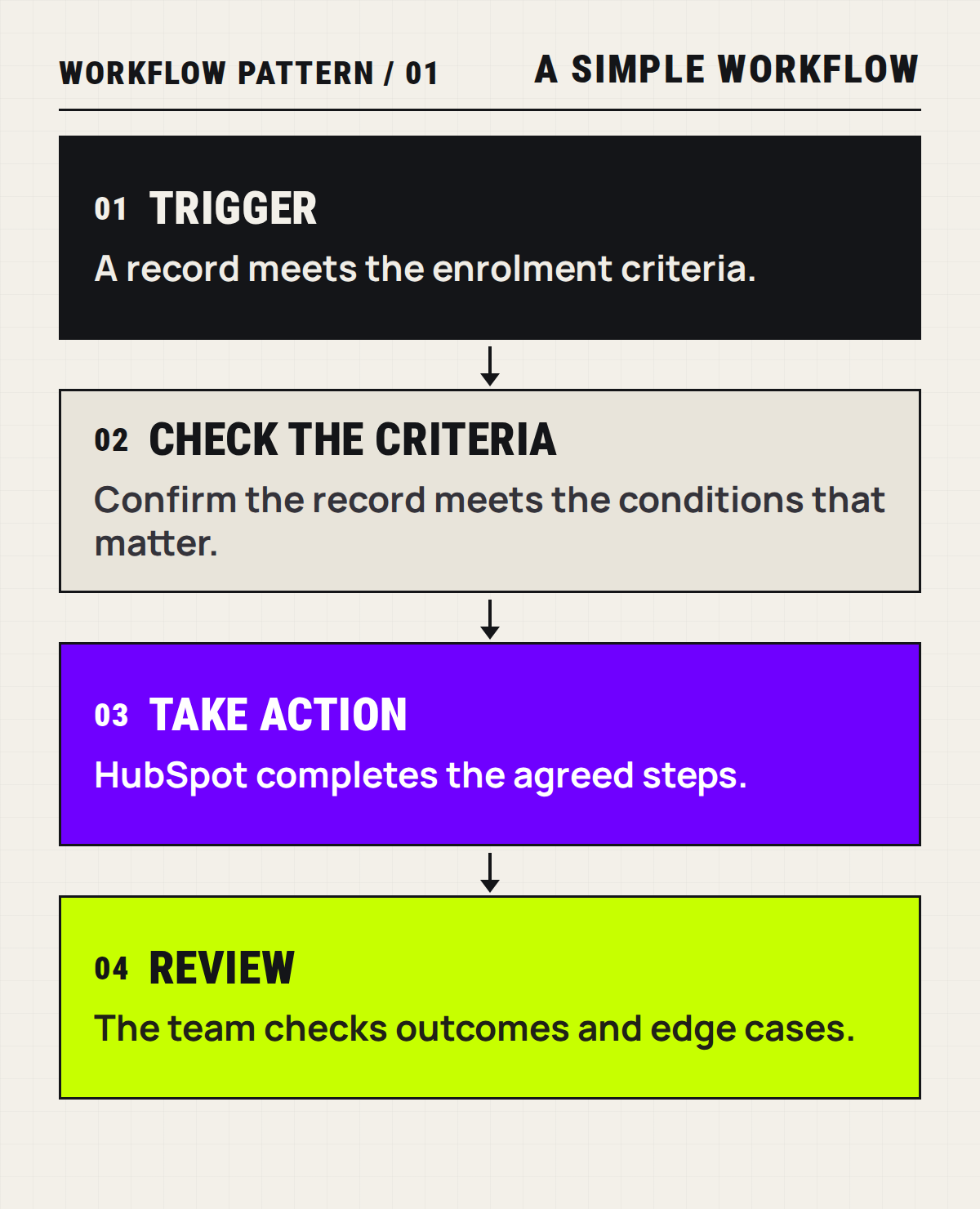
Every workflow below follows the same basic pattern.
Workflow 1: Keep your paid marketing list clean
What goes wrong
A bigger contact list isn't always a better contact list. Three common groups can add cost without adding much value:
- Email addresses that have hard bounced. A hard bounce usually means the address is wrong, closed or no longer working.
- People who have unsubscribed from all marketing emails.
- People who were sent marketing emails but haven't opened or clicked one for a long time.
HubSpot already blocks marketing emails to people who have hard bounced or unsubscribed. But they may still count towards your paid marketing-contact limit until you change their status.
The third group needs more care. An email open isn't a perfect sign of interest. Tracking can be blocked, and some people may read an email without loading its images. Treat a long period with no tracked open or click as a review signal, not proof that the person is no longer interested.
What the workflow does
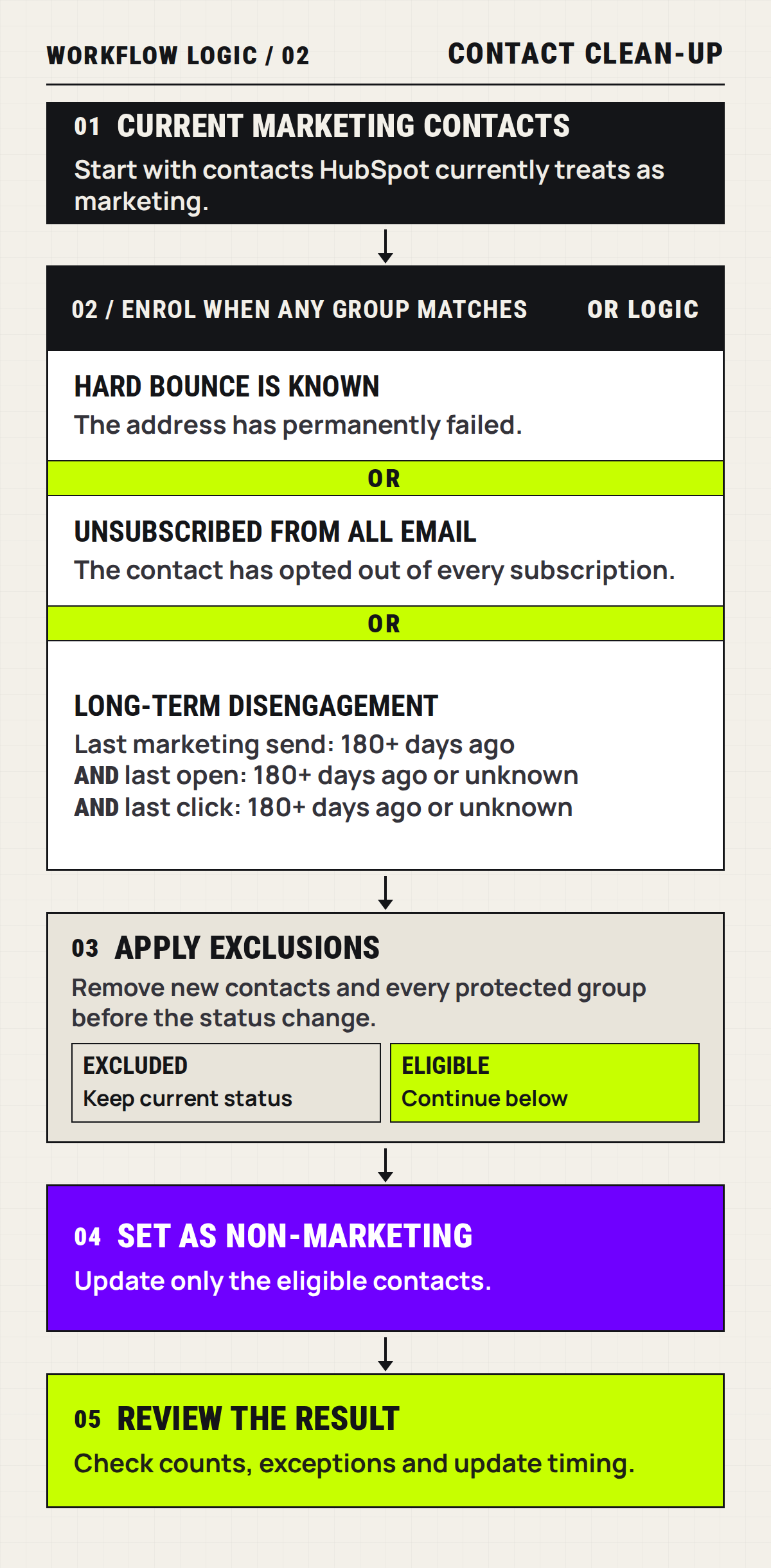
The workflow starts with contacts who currently count as marketing contacts. It then looks for any of these signs:
- Their email address has hard bounced.
- They have unsubscribed from all marketing email.
- Their last marketing email was sent more than a chosen period ago, such as 180 days, and their last open and click dates are also old or blank.
Before changing anyone, the workflow removes new contacts and any protected groups your business has agreed to keep. It then marks the remaining contacts to become non-marketing contacts.
A non-marketing contact can stay in HubSpot. They won't count towards the contacts you pay to market to after your account's next update date.
Why it matters
This keeps your paid marketing list closer to the people you can reach and who still show some interest. It may lower future contact costs and make your email reports easier to trust.
It also gives your team a clear way to review important customers. They can call the customer, ask for a new email address or keep the contact in an agreed protected group.
Keep contact clean-up simple
Use a cautious period, such as 180 days, rather than labelling someone disengaged after a few quiet weeks.
Make sure the person was sent a marketing email before using missing open or click dates. Otherwise, a new contact or someone who has never been emailed could be included by mistake.
The change to non-marketing status isn't immediate. HubSpot applies it on your account's next update date.
How to build Workflow 1
- Trigger: Create a contact-based workflow. Start with Marketing contact status is Marketing contact.
- Add three OR groups: Use Email hard bounce reason is known, Unsubscribed from all email is true, or a disengaged group. For the last group, use a last send date older than your chosen period and last open and click dates that are older or blank.
- Add exclusions: Exclude new contacts and any protected lists your business has agreed to keep. Check the matching group before you continue.
- Add the step: Choose Set marketing contact status, then Set as non-marketing. Leave re-enrolment off in the first version.
- Test and switch it on: Test a few known contacts, review the full matching list, then publish. Check Marketing contact until next update to confirm the change is scheduled.
Workflow 2: Give every important enquiry an owner and a next step
What goes wrong
Someone fills in your quote, callback or consultation form. The message reaches the business, but no one owns it.
One person thinks another person will reply. By the time someone notices, the customer may have spoken to another business.
What the workflow does
For a form that shows real buying interest, HubSpot can give the enquiry to a team member and create a clear follow-up task.
The task might say, "Call within one business day to confirm timing." HubSpot can also tell the owner that a new enquiry has arrived.
Depending on your HubSpot plan, the workflow may create a lead or a deal for the sales team to review. Don't create a deal for every form. A newsletter sign-up isn't the same as a request for a quote.
Why it matters
The enquiry has an owner from the start. The next job is clear, and managers can see whether it was done.
A quick, useful reply also gives the customer a better first experience.
Keep enquiry follow-up simple
Choose the few forms that show real interest. Agree on who gets each enquiry and what happens when that person is away.
Keep each task clear. "Follow up" is vague. "Call to confirm budget and timing" tells the person what to do.
How to build Workflow 2
- Trigger: Create a contact-based workflow. Choose a form submission from a quote, callback or consultation form.
- Check the owner rule: Decide who should receive the enquiry. For the first version, use one agreed owner and avoid replacing an existing owner unless that is intentional.
- Add the steps: Set the Contact owner, then create a task such as "Call new enquiry" with a short due date.
- Tell the owner: Add an internal email notification with the contact name, form name and a link to the contact record.
- Test and switch it on: Submit the form with an internal test contact. Leave re-enrolment off unless every repeat submission should create another task.
Workflow 3: Remind your team when a lead or deal goes quiet
What goes wrong
Sales don't always stop because a customer said no. Often, the conversation just goes quiet.
The customer may be busy or waiting for approval. The salesperson plans to follow up, then another week passes.
What the workflow does
You can choose how long a lead or deal can sit without activity. When it reaches that point, HubSpot can alert the owner or create a follow-up task.
The reminder can include the customer's name, the last activity date and the value of the deal. That gives the salesperson enough detail to decide what to do next.
Why it matters
This gives the team a safety net. It helps them spot forgotten opportunities and lets managers see where support may be needed.
You can also use daily sales reports to see which deals still need attention.
Keep quiet-deal reminders simple
Define what "quiet" means for your business. A seven-day gap may matter for a small purchase. A large project may need more time.
HubSpot can only use activity it can see. Calls, emails and meetings that aren't saved in HubSpot won't count.
Don't send the same alert every day. Too many reminders soon become easy to ignore.
How to build Workflow 3
- Choose the record: Build a deal-based workflow for deals or a contact-based workflow for leads. If you need both, build two separate workflows.
- Trigger: Use an active stage, an owner who is known and Last activity date is more than your chosen number of days ago.
- Add the step: Create a task for the owner, such as "Follow up: no recorded activity for 14 days". You can also add one internal notification.
- Avoid alert noise: Leave repeat enrolment off in the first version. Handle records with no activity date in a separate rule if needed.
- Test and switch it on: Test one recently active record and one quiet record. Confirm only the quiet record enters the workflow.
Workflow 4: Send a helpful follow-up after a form
What goes wrong
Someone fills in a form to get a guide, join a webinar or ask for more information. They expect a quick reply.
If nothing arrives, your business can look disorganised. If the only reply is a file with no help, you miss a chance to build trust.
What the workflow does
HubSpot can send the promised item after the form is submitted. It can also send a short series of useful emails over the next few days.
Each email should have one job. It might help the person use the guide, answer a common question or show them a sensible next step.
A simple form email is available on some lower HubSpot plans. A longer email series through a full workflow usually needs Marketing Hub Professional or Enterprise.
Why it matters
People get what they asked for without waiting. Your team doesn't have to send the same email by hand each time.
Good follow-up also helps a new contact understand your business before you ask them to make a bigger decision.
Keep form follow-up simple
Deliver the promised item first. Don't turn a helpful download into an instant hard sell.
Only send marketing emails to people who are allowed to receive them. A form submission doesn't always mean someone has agreed to every kind of marketing email.
How to build Workflow 4
- Trigger: Create a contact-based workflow and choose the exact form submission that should start the follow-up.
- Send what was promised: Add a Send email step for the guide, webinar details or requested information.
- Add a short delay: Wait one or two days, then send one useful follow-up. Add only one more email if it has a clear purpose.
- Add a stop rule: Set a goal or exclusion for people who book, buy or become customers so they don't receive the wrong next email.
- Test and switch it on: Use an internal test contact. Check the timing, links, email subscription and stop rule before publishing.
Workflow 5: Keep phone numbers clean and ready to use
What goes wrong
Phone numbers arrive in many forms. Some include spaces, brackets or a country code. Others are missing details.
Messy numbers make calling harder. They can also cause problems when another tool needs a set format.
What the workflow does
On suitable HubSpot plans, a workflow can put phone numbers into one agreed format. It can also flag numbers that look wrong so a person can check them.
For an Australian business, that may mean keeping the country code and number format consistent. If you work across countries, use the customer's country information rather than guessing.
Why it matters
Your team can find and use phone numbers more easily. Reports stay tidier, and connected calling tools have cleaner information to work with.
Keep phone-number clean-up simple
Formatting checks the shape of a phone number. It doesn't prove that the number is active or belongs to the right person.
A clean number also doesn't mean you have permission to send SMS messages. Calling and SMS tools have their own plan, setup and consent rules.
Test the workflow with Australian and international examples before you use it across your whole database.
How to build Workflow 5
- Trigger: Create a contact-based workflow and use Phone number is known.
- Keep a backup: Copy the original number into a separate text field before changing anything.
- Validate and format: Add Validate and format phone number. Choose Australia as the default country only if that fits your database.
- Add two paths: Send invalid numbers to a task for a person to check. Send valid numbers to a separate test field first.
- Test before replacing: Try mobile, landline, international and clearly invalid examples. Only update the main phone field after the results are right.
Start with one real problem
You don't need to build all five workflows at once.
Choose one job that people often forget. Write the rule in one sentence:
When this happens, HubSpot should do this, unless this exception applies.
Name the person who owns the result. Test the workflow with a small set of sample records. Then check whether it saves time or improves follow-up.
If the rule is hard to explain, it isn't ready to build.
CLCK can review your HubSpot setup, find the follow-up gaps and help you choose the first workflow worth fixing. Apply for a strategy session.